
Installation and usage guide
Install subtitle.im, read, search and download transcripts, and manage YouTube captions.
From installation to everyday use
- 01
Install from the Chrome Web Store
Open the listing, choose Add to Chrome, and confirm Add extension. The welcome page opens after a new installation.
Already installed? Continue with the steps below.
Open Chrome Web StoreFree access starts in the extension. No account is needed to try it.
- 02
Pin the extension
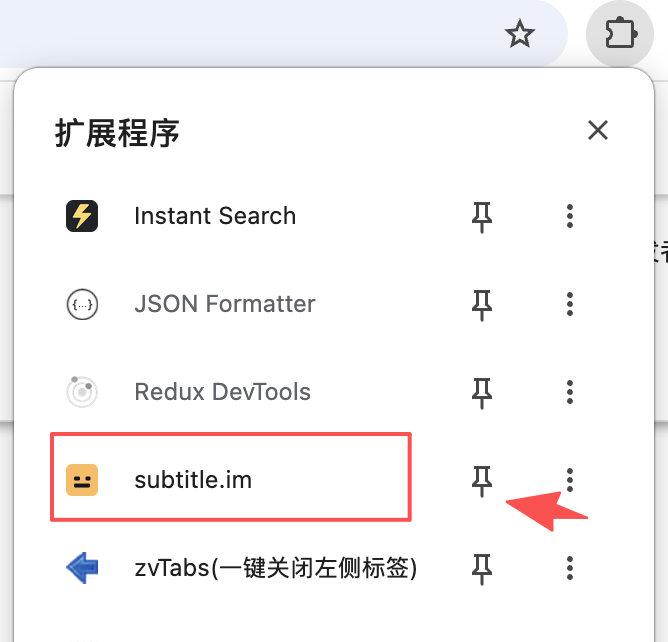
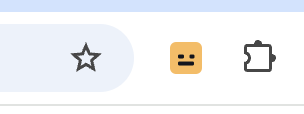
Open Chrome’s extensions menu, find subtitle.im, and click the pin icon. Your global settings are always within reach.
1Find subtitle.im, then click its pin 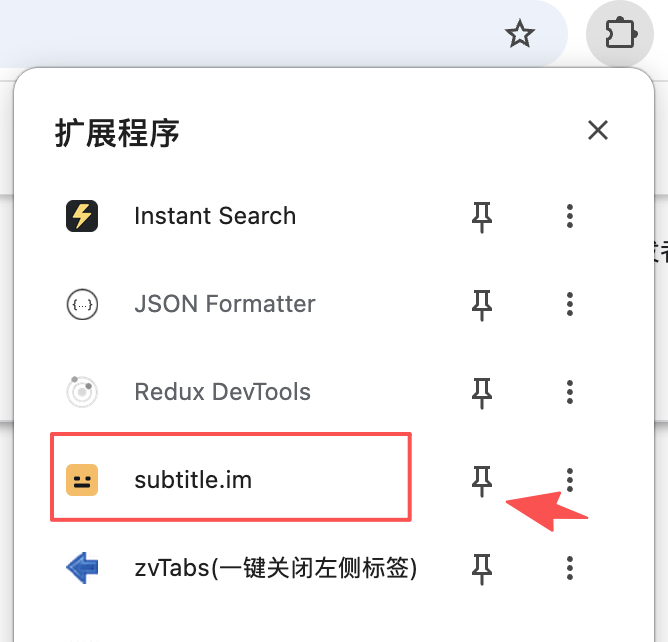
2Find the gold icon in your toolbar 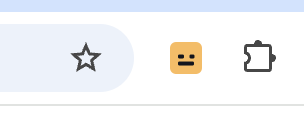
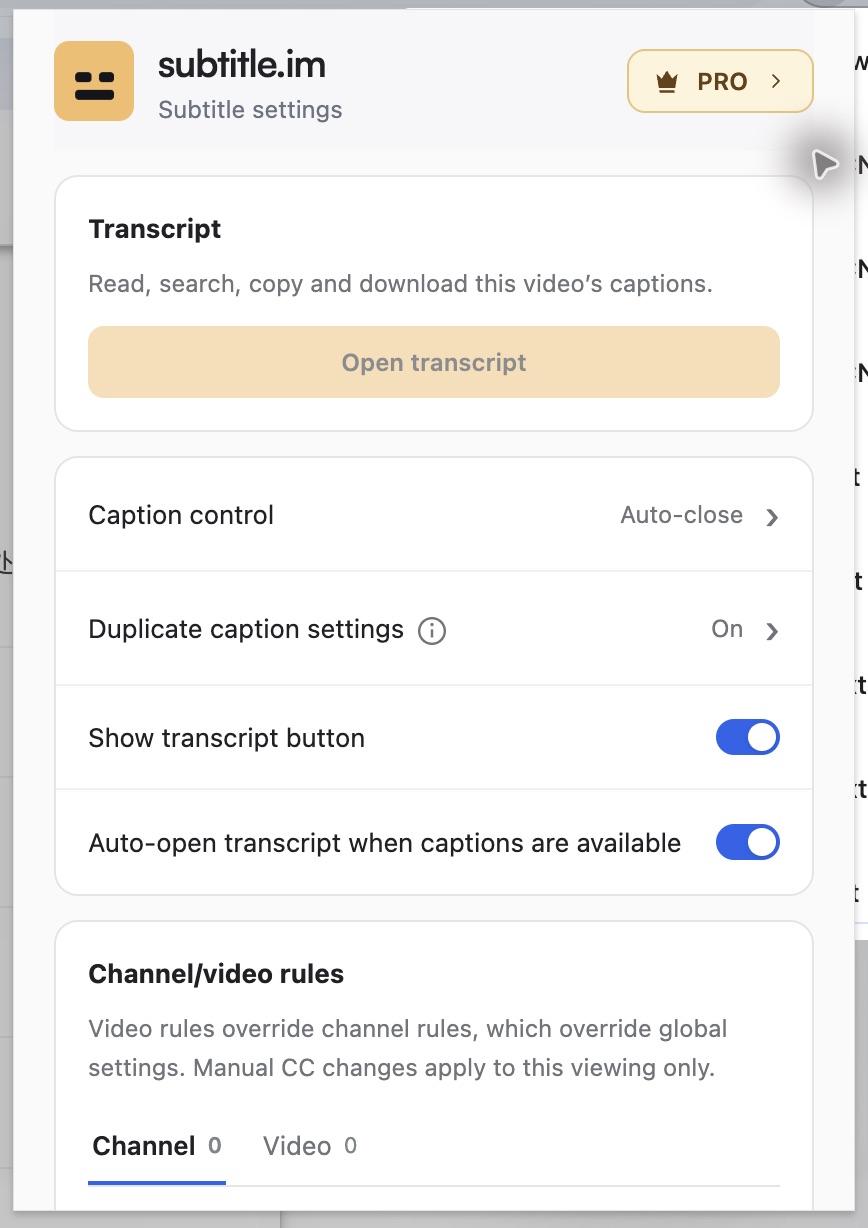
3Click it to open your settings 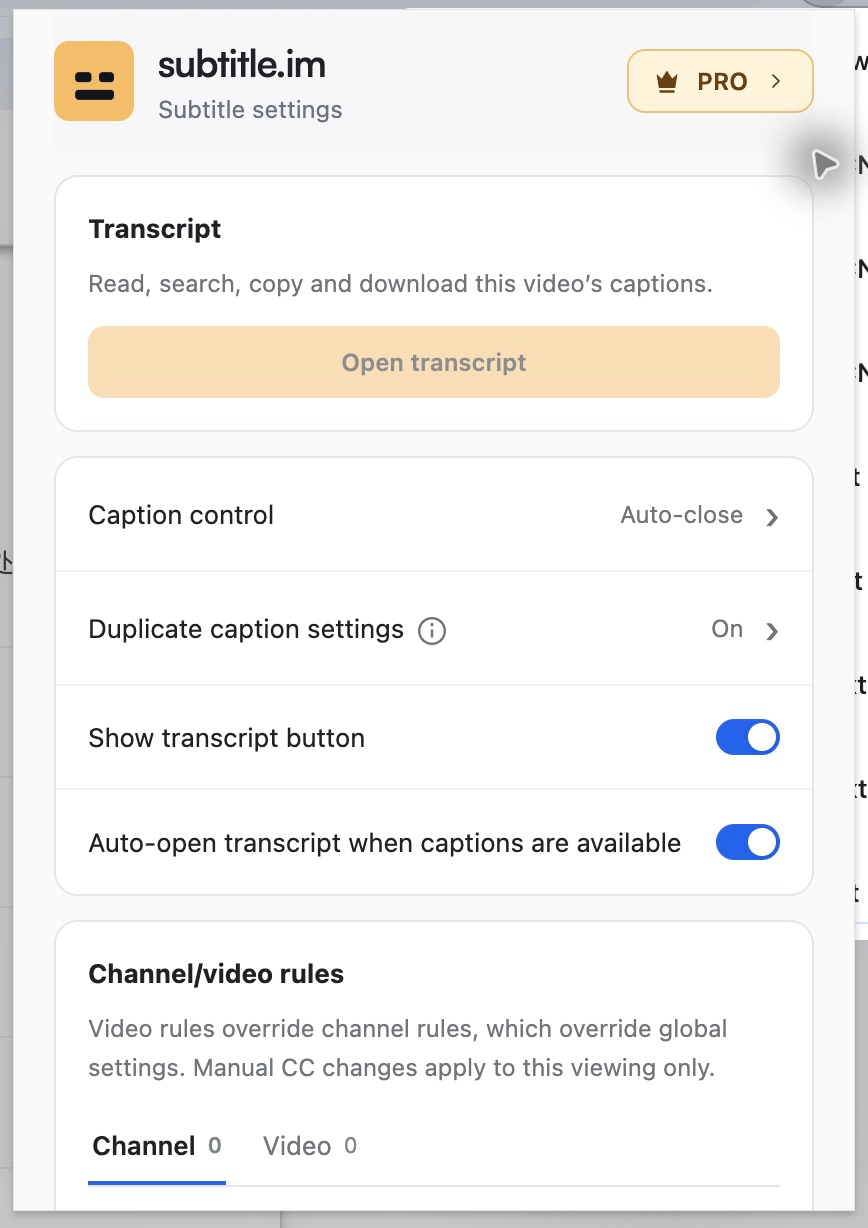
- 03
Open a video and press play
Refresh any YouTube page that was open before installation. When a caption track is available, subtitle.im can turn it on and check for burned-in subtitles.
The default is Auto-open, with duplicate handling enabled separately. In Caption control, you can also choose Follow YouTube or Auto-close. Auto-close skips detection and duplicate-handling charges.
Search and revisit transcripts
Get a video’s available captions, search and revisit moments, then copy or download what you need.
Caption controls and duplicates
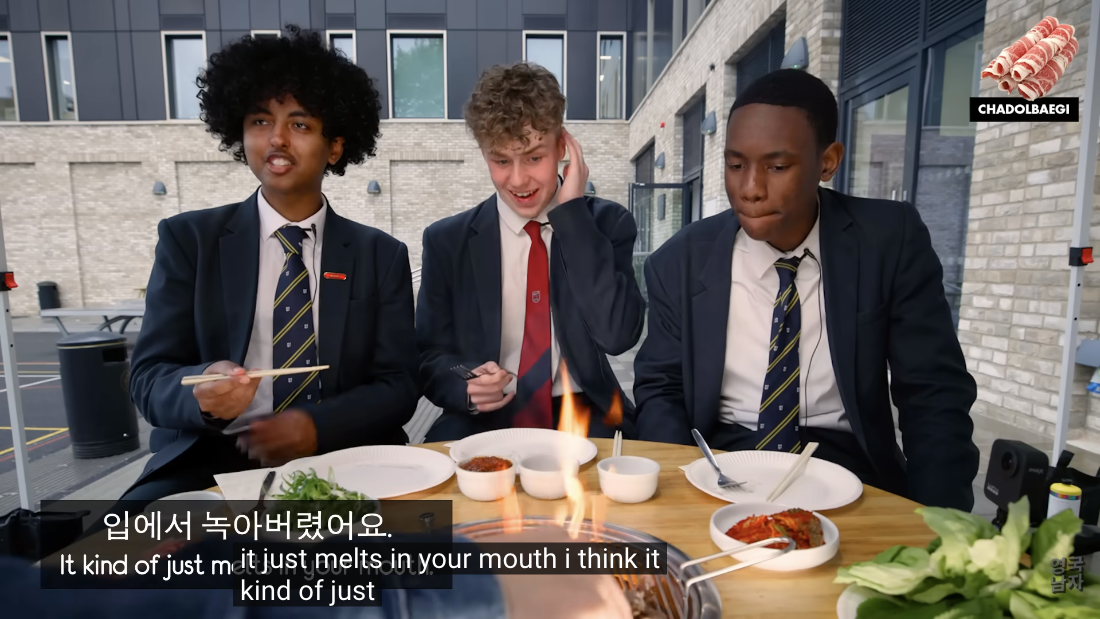
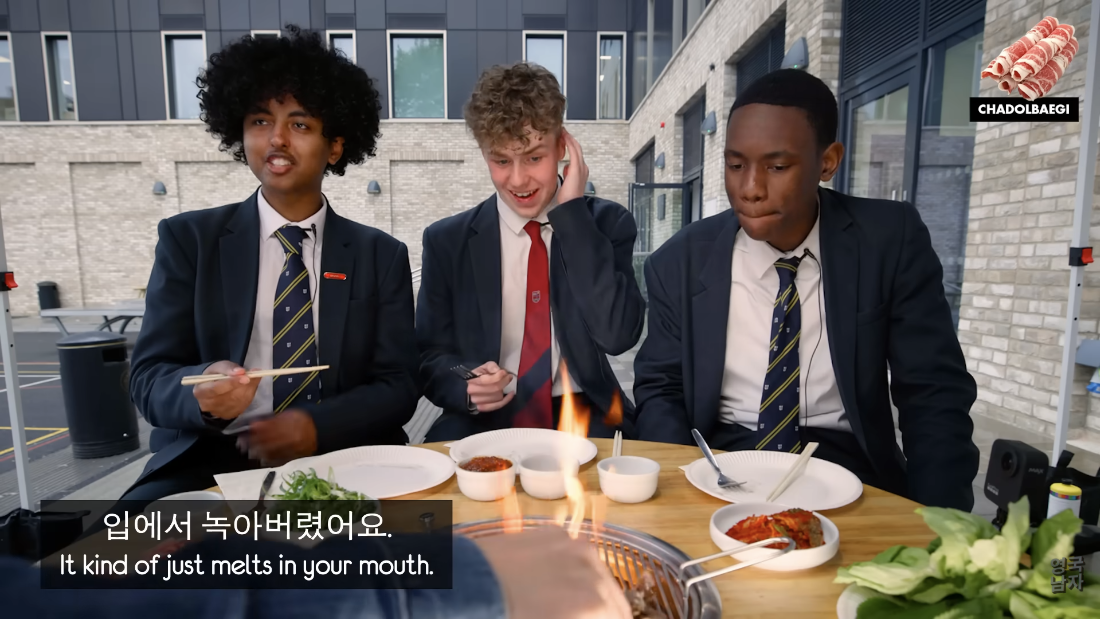
When a video has embedded subtitles, detect duplicate YouTube captions and turn them off according to your settings. Restore them anytime.
Before· Overlapping English captions 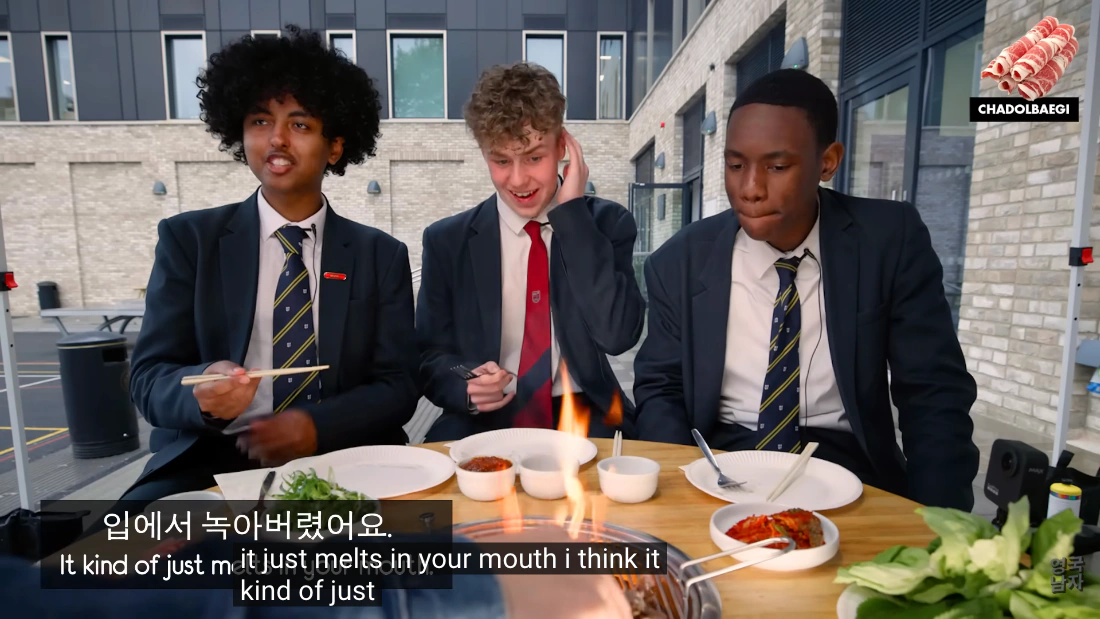
After· Original subtitles remain 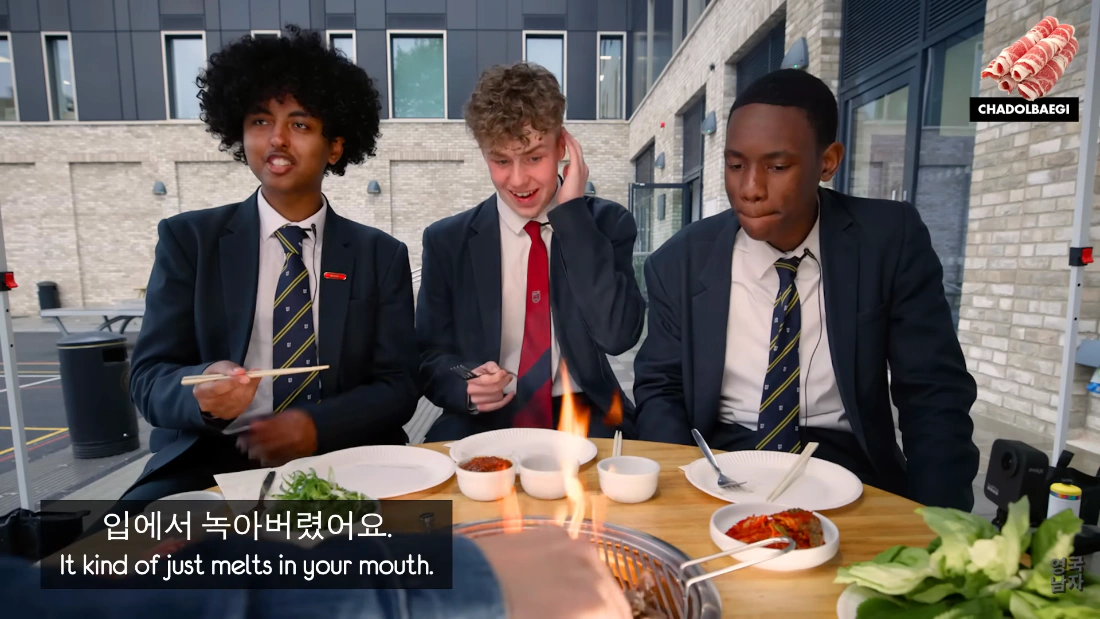
The same moment, before and after subtitle.im closes duplicate YouTube captions. Captured with Free access.
- 04
YouTube transcript guide
Get a video’s available captions, search and revisit moments, then copy or download what you need.
1Open the transcript
Keep the current YouTube video page open. Click the gray document icon below the video to open the transcript on the right, or click the gold subtitle.im icon in the browser toolbar and choose Open transcript at the top of the popup.
YouTube 
Find the gold icon in your toolbar 2Search and revisit moments
Enter a keyword and move between matches with Previous and Next. Click a sentence’s timestamp to seek; pause following while reading and return to the current position. Switch between available caption tracks; no translation is generated.
3Select, copy and download
Copy the full text, or enable selection mode, choose sentences, and copy or download them. You can also select search matches. Text settings control timestamps, paragraphs and line breaks; each sentence has a quick copy button.
- 05
Make captions work for you
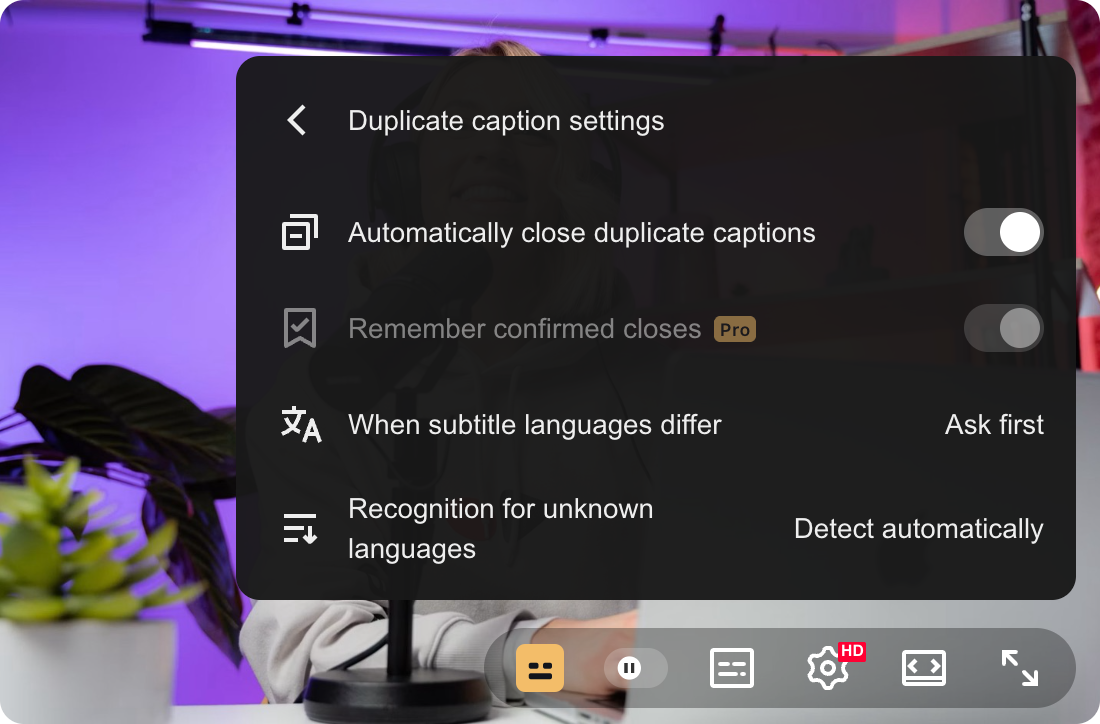
Click the subtitle.im icon in the player, then open Duplicate caption settings.
Choose what happens when subtitle languages differ: close automatically, ask first, or keep captions. Remembering confirmed closes and saved channel or video rules require Pro.
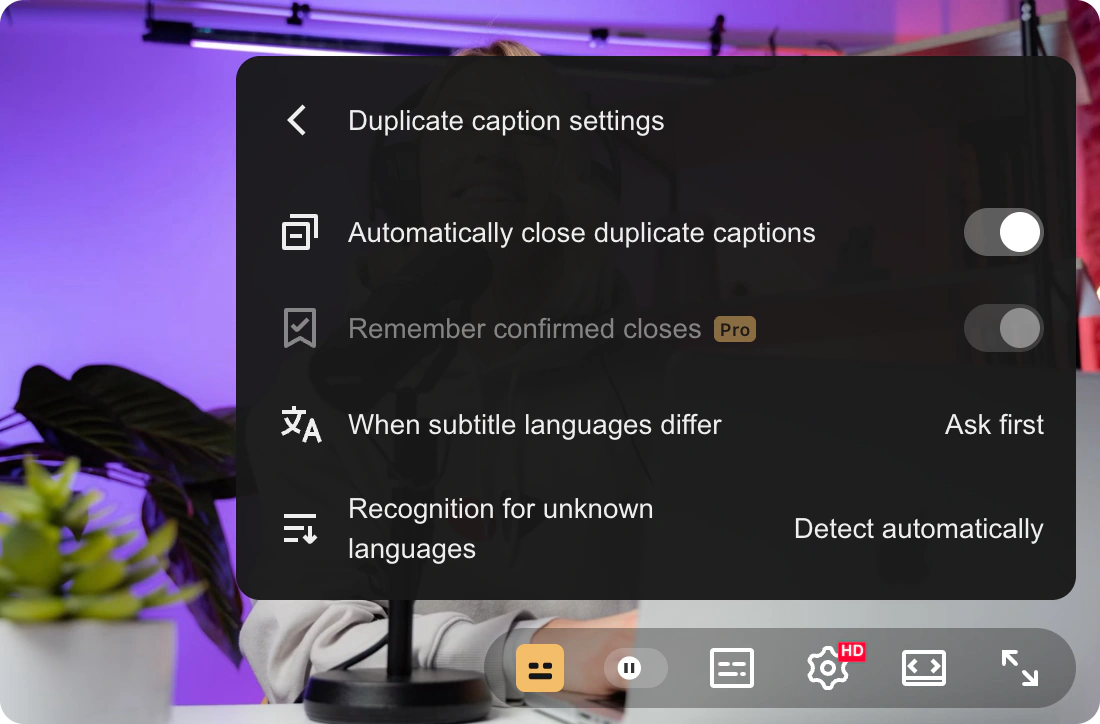
Open the gold player icon to adjust these settings. Pro-only features are locked. - 06
Bring captions back anytime
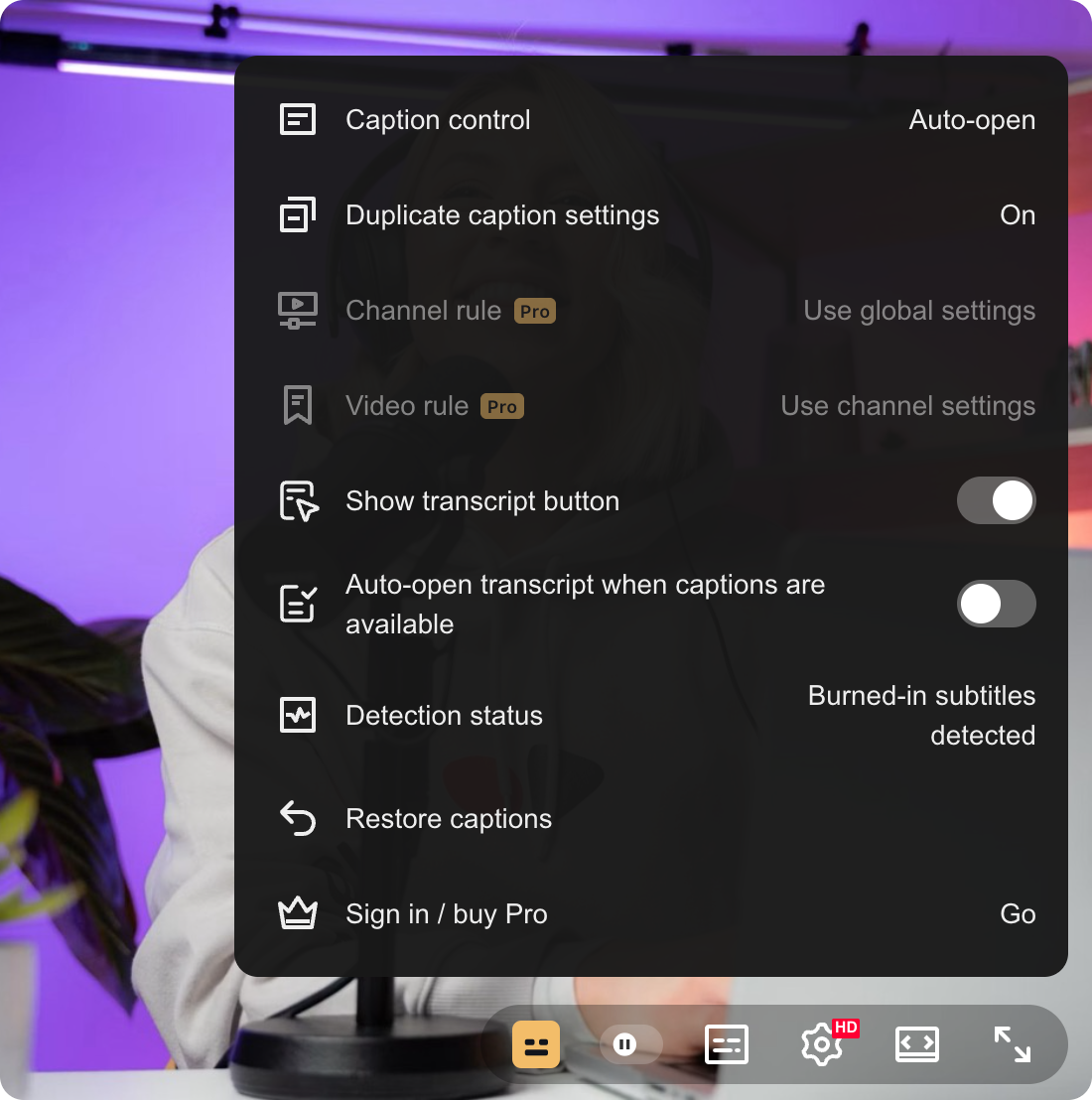
Use Restore captions in the player menu after the extension closes captions. You can also use YouTube’s CC button or the C key.
Manual CC/C wins over video, channel, and global settings for this viewing. Manually opened captions stay on. Reloading or opening another video restores the rules; manual changes never save a persistent rule.
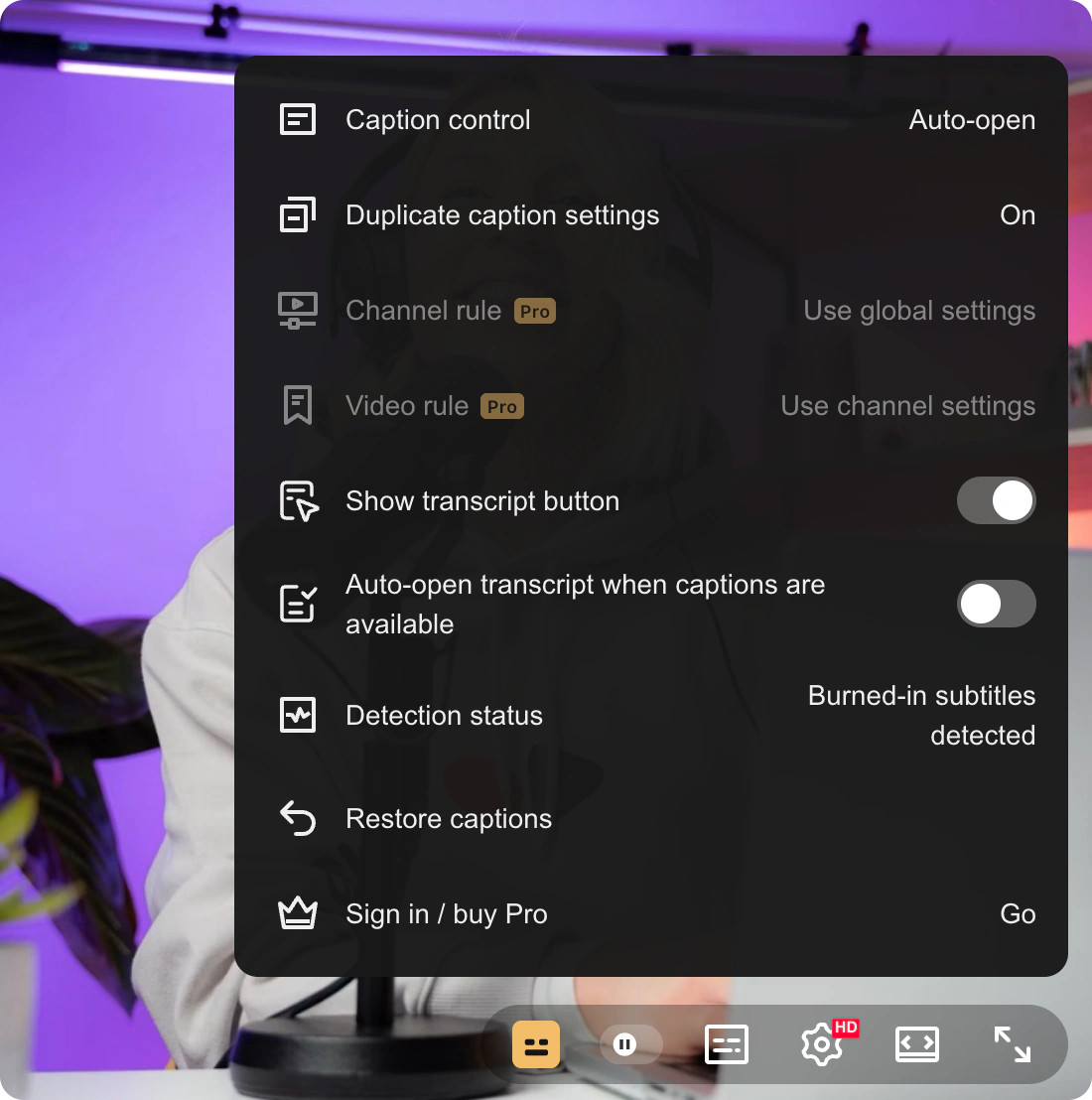
Gold player icon → Restore captions.



Already have Pro? Restore your access
Connect the extension to the account you used to buy or claim Pro.
- Click the gold subtitle.im icon in Chrome’s toolbar and choose Restore Pro.
- On the website, sign in with the account that has Pro. If you are already signed in, check that it is the right account. The connection is approved automatically after sign-in.
- Return to the extension and check that it shows your connected account and Pro access. Website approval alone does not confirm that the extension has received the connection.
Connection links expire after 15 minutes. If one expires, start a new connection from the extension.
Check my account and licenseNo email needed to try it.
Reading, search, seeking, selection, copying and TXT downloads are free. Pro adds SRT, VTT, PDF and Markdown; paid and gifted Pro have the same benefits. SRT/VTT need a complete track with reliable timing. The 10-video allowance only counts successful duplicate-caption closures, not transcripts or caption switching.
Burned-in subtitle recognition runs locally in your browser. Video frames are not uploaded.
Already have Pro? Start an account connection from the extension to restore your access.
View my licenseCommon questions
Which downloads are Free or Pro?
Reading, search, seeking, selection, copying and TXT downloads are free. Pro adds SRT, VTT, PDF and Markdown; paid and gifted Pro have the same benefits. SRT/VTT need a complete track with reliable timing. The 10-video allowance only counts successful duplicate-caption closures, not transcripts or caption switching.
Can I get a transcript without captions?
Transcripts use YouTube’s available captions, including existing automatic captions. Videos without them cannot be transcribed, and burned-in captions are not converted into a full transcript. Some sources provide partial text, which is labeled. Live or restricted videos may be unavailable. This feature does not download video or audio.
How do I save a PDF?
Pro opens a local formatted page; choose Save as PDF in the browser’s print dialog. Opening print does not mean a file was saved. PDF search/copy for complex scripts such as Arabic may be limited by the browser; use TXT, SRT, VTT or Markdown when reliable text is needed.
Are transcripts uploaded or retained?
The extension gets captions from YouTube without uploading transcripts or video frames to subtitle.im. Text and reading state are cached locally, limited to 8 videos/4 MiB. Cache entries expire after 24 hours and are removed on later cache operations; reloading invalidates the old page state. PDF layout snapshots use browser session storage, expire after 1 hour and are cleaned up when the layout tab closes, a new layout is created or the background starts. You manage downloaded files.
Where do I find the extension’s controls?
The gold toolbar icon opens your account, global preferences, and saved rules. Pin it through Chrome’s extensions menu using the screenshots above.
The gold icon inside the YouTube player opens controls for the current video, including detection status, Detect again, and Restore captions. Refresh YouTube pages that were open before you installed the extension.
Why are duplicate captions still showing?
The video needs both burned-in subtitles and an available YouTube caption track. Videos without a caption track do not need duplicate-caption detection. Recognition also needs enough clear subtitle evidence; some videos cannot be confirmed.
Check that duplicate detection is enabled, then open the gold player icon to read the detection status or choose Detect again. If the two subtitle languages differ, your Duplicate caption settings determine whether captions are closed, kept, or you are asked first.
Can I keep or restore YouTube captions?
Yes. Use Restore captions in the player menu, YouTube’s CC button, or the C key. A manual CC change stops automatic adjustments for this viewing.
This does not create or change a saved video or channel rule. When you reload or revisit the video, your saved rules and global settings apply again.
What counts toward my 10 free videos?
Only a successful duplicate-caption closure on a different video counts. Rewatching an already-counted video does not use another slot. Detection attempts and manual caption changes do not count.
Your remaining allowance is shown in the extension popup. Pro removes this limit and unlocks remembering confirmed closes and saved channel or video rules.
The website approved my connection. Why is the extension still Free?
Check that you signed in with the account that has Pro, then return to the extension and check its connection and access status. Approval on the website and receiving access in the extension are separate steps.
If the connection link has expired, choose Restore Pro in the popup to start again. You can check your account’s access on the license page or Get help.